Wednesday, July 19, 2017

Podcasts


Podcasts
Today we will be discussing podcasts and different ways they can be utilized in the classroom/library. I will be sharing three programs that I like to use to help create podcasts – Podbean, Audacity, and SoundCloud.


Podcast - a digital audio file made available on the Internet for downloading to a computer or mobile device.


Podbean
 The first program I tried was Podbean. I really liked how easy it was to download my file into podbean. I did not have to convert my m4a file into a wav file. It was very user friendly, I was also able to attach a picture, title, and description to my podcast.

Here is a link to a podcast that I created with a student. Victoria is looking for a particular book, based off her likes, I tried my best to help her find a book. Download this episode (right click and save)

https://www.podbean.com/media/share/pb-c6c4n-6d2191


Audacity
 The second program I would like to talk about is Audacity. Audacity was not as user friendly as I thought it was going to be. First I downloaded their free software, then I couldn’t import my m4a file, I had to convert it to a wav file. In order to do that I had to download FFmpeg library version, that was a task in itself. I was finally able to convert my file.  I’m not that tech savvy so this program was not good for me.


Podomatic
 The last program I tried was  Podomatic. This was also very user friendly. I was also able to add picture and description to my podcast like in Podbean. It guides you through the process, very helpful. I did not have to convert any files which was a plus.


My Recommendation
The podcast I would call my favorite is podbean. I had used it before in one of my other classes. It was very easy to use. The other two I tried weren’t as simple. Podbean is very user friendly, if you have never created a podcast, I would recommend this program you can create/upload file, add picture, and description to your podcast.


Uses of podcasts in classroom/Library:
Reading Radio: Have your students make short radio broadcasts summarizing the books they are reading.

Celebrate Culture: Have your students’ record podcasts about important cultural months like Black History Month or Hispanic Heritage Month and then present them to the school or parents to commemorate the events.

Podcasting Library: Have your students collaborate to create a library of podcasts from which future students can learn.

Current Events Newscasts: Practice nonfiction reading skills by having your students do weekly or monthly podcasts on an interesting current event.


Sources
Macpherson,E. (2017). 10 Podcasting Projects Teachers Should Try in the Classroom. Retrieved July 19, 2017, from https://www.weareteachers.com/10-podcasting-projects-teachers-should-try-in-the-classroom-2/


Thursday, July 13, 2017

Cartoons and Comics

Cartoons and Comics 

Today's blog is about cartoons and comics. What do you think of when you hear these words? I remember waking up super early on Saturday morning to watch cartoons and if I were lucky and my dad bought the Sunday newspaper; read the comics. I will be discussing three sites I used to create comic strips. I will also be giving ideas as to how to use them in the classroom. 

ToonDoo


ToonDoo was easy to use. It guides you as you create your comic. First it gives you options for your comic strip layout. Then it gives you templates of characters, backgrounds, and items you can add to your strip. I liked the amount of images that were available, I was able to create the strip I wanted. Saving the comic strip was simple. I think students will enjoy creating their comic strips using ToonDoo. They can get very creative and it is very user friendly even for younger kids. They can explain their life story and then as an extension write they story based off the images.

Pixton
Pixton was also very simple to use. It takes you step by step , displaying all the available images, backgrounds, and texts. I was able to create my comic in a jiffy. I liked how you were able to change and facial expressions on the characters. It was very fun to play dress up..lol. Pixton offered a huge variety of characters and items to choose from. Saving and sharing my comic strip was a breeze. I think students will find it easy and fun to create a comic strip using Pixton and all the options it has to offer. They can create a summary of a story using beginning, middle, and end. 


MakeBeliefsComix


MakeBeliefsComix was another site I used to create a comic strip, this site does not ask you to create an account which is a plus for those who don't like to give out their information. Crating my comic strip was simple, although it doesn't have many images to choose from, the variety as opposed to the other two sites is limited. I had to use different types of images to create my strip. Some images were in color others were black and white. Some were only available in stick figures, while others were cartoon like. Saving was simple, I just saved to my disk and then attached it as an image to my blog.I think students will not enjoy this site as much as the other two. But given the chance to express themselves using technology they will take it. They can use it to practice using the spelling words of the week. 

Plan to Share Comics with teacher-colleagues: 

I would like to collaborate with teachers and ask what they are teaching for the week and create a comic strip that will help aid in their lesson. I can also help by creating a comic strip based off an intervention plan and they can use it to make intervention time a little more fun. I would also try to create a screen cast so they can learn hoe to access and create their own comic strips that go along with their lessons. 

Source

Zimmerman, B. (2017). 25 ways to use makebeliefscomix in the classroom. Retrieved from http://www.makebeliefscomix.com/How-to-Play/Educators/ 

Monday, July 10, 2017

Videos and QR Codes in the Library

Videos and QR Codes in the Library

Today we will be discussing different ways you can use videos and QR codes in the library. I will be posting videos from YouTube and a QR code that will take to a book trailer on Animoto.  These are examples of how to use different apps and programs in the library. 


YouTube Videos 


1. Calypso Gilstrap Norman High School Library https://www.youtube.com/user/TheNHSLibrary/videos

CQ Researcher – This link contains current social issues that students would find interesting. It contains reports, pros and cons, and maps and graphs for visual presentations. It also creates the citations for you, which you can modify to APA or MLA.


How To Use EBSCOHost – This video was very informative. The librarian showed the students how to use EBSCOHost from home. She also walked them through how to locate information, cite, and using permalinks using for research on social issues. 


Video Tutorial How to Embed a Prezi Presentation in Wikispaces – This video shows students step by step on how to embed a Prezi, if students are not tech savvy like myself it will make the process a lot easier. You can watch as many times as you wish and go back if you do not get it right the first time. 


Cristina and Jordan: Addiction Issues and Veterans – This video discusses the illnesses Veterans may suffer and how we can help Veterans deal with them. Sometimes people may feel they can’t talk to someone, this video gives great ideas and advice to try and minimize Veterans and addiction. It can really help someone in need. 


2013-2014 Registration Process – This video will help students learn how to select classes, register, and get prepared to graduate. It is a very detailed video that talks about which classes are needed and tells students they can’t drop classes that are not needed. Teachers encourage students to take the “most challenging classes”, setting the bar high for their students. Students will find this video to be crucial to their high school years.


Dec 2012 Financial Aid Night Part 1 – This video is vital to students as they will learn how to apply for financial aid. They are walked through the process as well as parents, they are told what links to go to and it explains the different types of aids and the agencies that provide them.


Online Career Resources – This video shows students how to access and use the online library database. It is detailed information into where to locate the book in the library after they are given the information online. Students will love how the resources are all under one link. Print resources, online resources, and citation resources; these are all used when doing research for classes. Students can also search for careers. They can learn about their pay, what they do, and education needed for that career.


Belle-Beauty & the Beast – Overdue Library Book Parody – This video was a wonderful way to express how important it is to return overdue books. Students would have fun creating these parodies as well as collaborating with their friends as they edit and present.


How to use videos to promote library: 

  • Create videos to show students and parents how to access and use online resources. 
  • Make videos to share with patrons any upcoming events. 
  • You can showcase books of the month with book trailers.
  • A wonderful way to showcase top readers. 
  • A fabulous way to present community outreach programs.


Animoto and QR Codes


One sunny Sunday, the caterpillar was hatched out of a tiny egg. He was very hungry. On Monday, he ate through one apple; on Tuesday, he ate through three plums--and still he was hungry. Strikingly bold, colorful pictures and a simple text in large, clear type tell the story of a hungry little caterpillar's progress through an amazing variety and quantity of foods. Full at last, he made a cocoon around himself and went to sleep, to wake up a few weeks later wonderfully transformed into a butterfly!

I created a book trailer using Animoto. This was the first time I had ever created one or even used Animoto for that matter. It was very easy to create the account, being the first time to use it, the program walked me through the process. I quickly looked for creative common pictures that went with the story and created the video. I really enjoyed it, I will be making more of these for sure! 


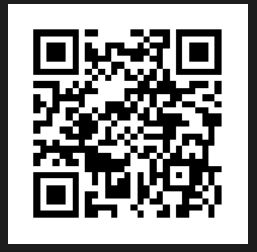
Here is the QR Code that goes with my video for the book The Very Hungry Caterpillar by Eric Carle. Go ahead and scan it, it will take you directly to the book trailer. Enjoy! 


Ways to use QR Codes in the Library:


  • The codes can link to your library website, program calendar, electronic databases, or other important resources. 
  • QR codes can be placed on book covers to provide access to book blurbs, author interviews, and book trailers.
  • QR codes can be used to link students with online content. Provide access to free e-books, library e-book downloads, and online magazine subscriptions.
  • Post pieces of artwork around the library. Ask students to create a QR code to go with the exhibit. The links could provide artist information and other images by the artist.
  • QR codes can easily be placed on maps such as travel or cultural information.

Sources

Lamb, A. (2013). Scan me! QR codes in the school library. Retrieved from http://eduscapes.com/sessions/qrcodes/


Thursday, July 6, 2017

Screencasts, Instagram, and Flipagram

Screencasts, Instagram, and Flipagram

Today I will be discussing Screencasts, Instagram, and Flipagram.  I am going to tell you about my experience with Screencast-o-matic which I used to create a screencast. I will also be talking about Instagram and Flipagram and how to we can use them in our classroom.

Screencasts
A screencast is a digital recording of computer screen output, also known as a video screen capture, often containing audio narration.
Uses for the classroom: This tool is fantastic when trying to present a how-to video. It allows you to visually and verbally explain to students step by step how to use a new app or software.  

I chose to use Screencast-o-matic to create a screencast that showed my students how to access the online library database from home. This program was very easy to use from setting up an account to creating my screencast. I had never created a screencast before so I was a little nervous. This program was very user friendly and I quickly recorded and uploaded my screencast. Here is the screencast I created using Screencast-o-matic.


Instagram
Instagram is a social networking app made for sharing photos and videos from a smartphone.
I am not much of a photo sharing person. This was the first time I had ever used Instagram. I was a fun and easy way to share pictures. I really liked the app.

Uses for the classroom:  Some suggestions are using Instagram to provide students with a visual for a writing prompt, a way to show evidence of complex ecosystems for a biology class, or to use images that are related to culture being studied in a sociology class. Suggestions are from the Prezi, "Using Instagram in the Classroom”.

Here is the link to my Instagram: https://www.instagram.com/mesmi02/

Flipagram
Flipagram is a sharing app that has one sole purpose, to help you make short movies out of your images. Adding captions and music was a plus. Again I like I have said before I’m not one to share pictures, but this was fun to use. I really liked that you could add music to the video. This was very simple to use and the amount of available music was great.  Sharing the video was also easy.

Uses for Classroom: This app reminded me of powerpoint, except a lot a easier and way more fun. The students could create presentations. Students can also create videos of community service projects.

My Flipagram link: https://flipagram.com/mesmi02

My favorite
My favorite was Flipagram, I really liked how easy it was to create a video using my cellphone pictures. Adding music made the video come alive, I was able to control the speed of the pictures to go along with the music. I could see my students using the amazing app to create wonderful presentations. I can picture using it at end of the year awards assembles to display how the students have grown from the beginning of the year to the end by using the pictures I took all year long.

Sources

Flipagram. (2017, May 31). Retrieved July 06, 2017, from https://www.commonsense.org/education/app/flipagram

Moore, A. (2012). Using instagram in the classroom. Retrieved from https://prezi.com/fvbrbbznr7ee/using-instagram-in-the-classroom/

Wednesday, June 28, 2017

Infographics

Infographics

In today’s blog I will be displaying my infographic I created from data and information I obtained from an article.  I will also be discussing three webapps used to create infographics and which one was my favorite.

Infographics are visual presentations of information that use the elements of design to display content. Infographics express complex messages to viewers in a way that enhances their comprehension. Images are often an extension of the content of a written article, but infographics convey a self-contained message or principle.  (Adams, 2011)

Infographics helps the visual learner in your class. With the images and large text, they can easily decipher the information you are trying to convey. You can strategically place charts and text in a manner that will make comprehension easier for students to understand.

I tried three webapps when I created my infographic. They were Easel.ly, Piktochart, and Infogram.  After playing around with them I chose to go with Easl.ly.


I chose Easel.ly because upon creating my account I was welcomed by an ample amount of free templates to choose from. It was very simple to make changes, move, and add text and shapes to. There were objects I could embed which along with the templates were completely free to use. It was very user friendly I like the simplicity of adding media from my desktop by clicking on media tab. I was able to change the background, add charts, and upload images. This was the first time I ever created an infographic, I must say it was pretty fun and easy thanks to Easel.ly.
I read an article titled “Vast Majority of Americans Say Benefits of Childhood Vaccines Outweigh Risks”. The article was very interesting, being a new mom after 15 years of trying and doing research on vaccines, I was drawn to this article. I gathered information and statistics about vaccines and used images and text to represent them.  Here is my infographic.


One of the other webapps I played with was Piktochart. It was also easy to use. This webapp did not have as many free templates as Easel.ly. It was also difficult to move objects around. It was hard to keep images aligned properly always had to readjust. In order to get more templates you had to upgrade for $29.00 a month.


The third webapp I tried was infogram.  This was my least favorite because it had few images and icons to choose from. I found it difficult to modify templates that were free to use. In order to upgrade for more images and templates you have to pay $18.00 a month. With less images and icons to work with, it make you infographic less visual.

Sources:
Adams, D. (2011, March 25). What Are Infographics and Why Are They Important? Retrieved from http://www.instantshift.com/2011/03/25/what-are-infographics-and-why-are-they-important/

Funk, C., Kennedy, B., & Hefferon, M. (2017, February 2). Vast Majority of Americans Say Benefits of Childhood Vaccines Outweigh Risks. Retrieved from http://www.pewinternet.org/2017/02/02/vast-majority-of-americans-say-benefits-of-childhood-vaccines-outweigh-risks/


Schulten, K. (2010). Teaching with infographics: Places to start. The Learning Network. https://learning.blogs.nytimes.com/2010/08/23/teaching-with-infographics-places-to-start/

Friday, June 23, 2017

Blogs and Blog Readers

In this blog I will talk about a blog reader I chose and why. I will also discuss 5 blogs I liked that will assist me as a librarian.

The blog reader I chose was Feedly. It was very easy to use. Creating an account was a breeze, once I logged in I was able to immediately begin creating and organizing my feeds. I just typed in keywords and plenty of feeds were presented. I was able to organize them into categories and then attach tags. Feedly offers suggestions for you category or you can make your own. This made organizing very easy. After I created a category I realized I wanted to change the name, renaming it was simple all I had to do was click the pencil next to the category and viola rename it, I could also delete it if I wanted to. Feedly was very user friendly, I like how simple it is to organize the feeds and even save articles to read later. I located great blogs that will be of help when I am a librarian.

5 blogs I chose
1.       http://greatkidbooks.blogspot.com/  I chose this blog because it helps parents find awesome books for their children ages 4-14. Here parents can find books that have won awards, I like how they are categorized by award as well as by age level. There are also reviews on different book genres. This is a fantastic resource that will help parents find amazing books to enjoy with their kids.

2.       http://kissthebook.blogspot.com/    The next blog is called kiss the book. I chose this blog because it contains book reviews that were conducted by school librarians as well as students. Their reviews will help you find great books for your classrooms from K-12. They have an abundance of reviews from different genres and bilingual as well.

3.       http://mrsnthebookbug.blogspot.com/ I chose this blog because it contains activities that can be used as a future librarian. She also has a list of wonderful blogs for both librarians and parents to use. It also contains links to social media such as Twitter, Instagram, Pinterest and Facebook.  It also has a link for teachers to view lessons and activities for the classroom. This blog contains great resources.

4.       http://mrschureads.blogspot.com/ I chose this blog because it contains book trailers. Kids love to see animation, if they can see their favorite book come to life it will get them more excited to read. I can see myself showing these to kids so they can see a summary of the book is about. Then they can decide if they want to read it or not. Some kids are visual and auditory learners, this blog utilizes those learning styles.

5.       http://knowledgequest.aasl.org/ I chose this blog because it contains an abundant amount of information for librarians. It has blog topics about leadership, collection development, teacher collaboration, makerspaces, professional development, STEM, and student engagement teaching models. As a librarian this information is crucial and to have it all under one site is perfect. I will definitely be referring to this blog as a future librarian.


Wednesday, June 7, 2017

Facebook and Twitter


Librarians are using Facebook as means of communication for the students, parents, and community members. They post pictures of award winning students, award winning books, and ways parents can get involved in attending library functions with their children. I am impressed with how the librarian at Henry Ford Elementary promotes her library on Facebook. Mrs. Narda Lugo has an amazing page demonstrating all the wonderful things that she is doing at her library. Way to go Mrs. Lugo. The comments I saw on the Facebook pages was mostly parents thanking the librarian for posting all the important information. There were also comments by the students stating they were proud to see themselves on the page. The amount of comments though was not very many, but I see it as quality not quantity. The advantages I think is that technology today is readily available so parents can stay connected, which is a plus. The librarian can do so much more with an electronic newsletter as opposed to a paper newsletter, plus we are saving the environment by using less resources. It’s great to promote services, advertise programs, and create a dialogue between the library and the patrons. A disadvantage I see would be privacy. In this day and age we value our privacy and if someone can just come to your page and take your pictures and information, I would feel violated. As a parent this would be even more of a concern as their children are being posted on the page.

After reading the tweets of Ed tech leaders I was blown away by the use of communication tools. Although you only begin with comments, you can tag on videos, links, and ask questions. The way you can connect to other professionals in your field is fantastic. Being able to have someone answer questions you may have retweeting your post and it reaching someone who can assist you is amazing. I really had fun, I can see myself using this great resource for communication with people. If you like to share and collaborate this is the tool for you.

 I am not too familiar with Twitter but it is very user friendly. I really enjoyed the functionality of it all, but I have some background experience with computers. I think parents or grandparents who want to use this technology tool and are not familiar with computers, it might seem confusing and they may get turned off. My advice would be continue working with it, in no time at all they will get the hang of it and really enjoy the networking.